3. Import RGB Assets
RGB assets must be imported before they can be used on the Lightning Network.
-
On the home page, click
Morenext to Activities, then select Import.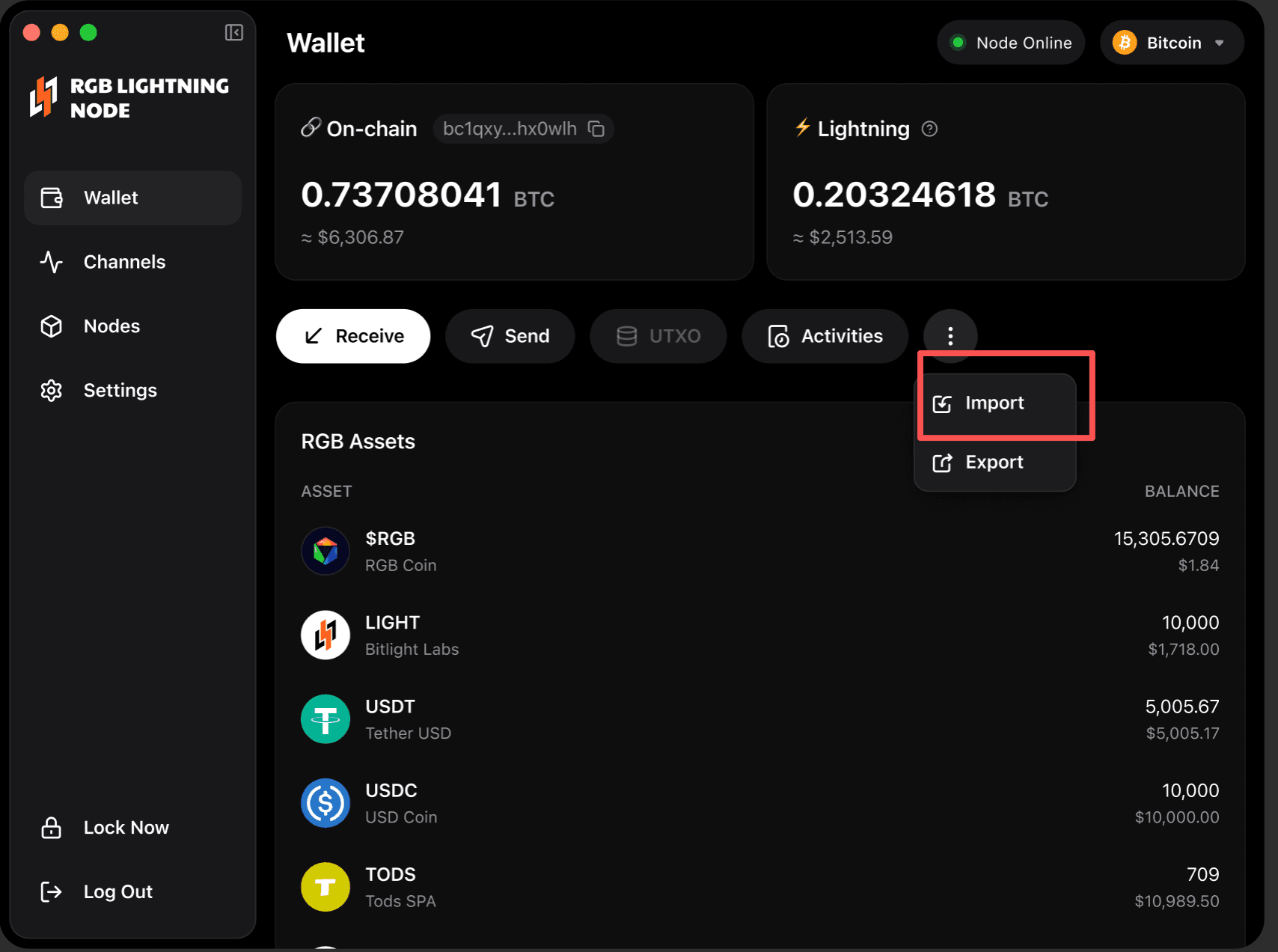
-
On the Identify Asset page, enter the Asset ID.
-
After the asset is identified successfully, click
Identify Assetto continue. -
On the Configure Invoice page, enter the amount to import. The system will generate an invoice for receiving the asset. In this step, the UTXO will be bound automatically. If no UTXO is available, you must create one first.
-
Copy the invoice and use the Bitlight Wallet extension to send the transfer.
-
After the transfer is complete, return to the invoice page and click Continue to Finalize.
-
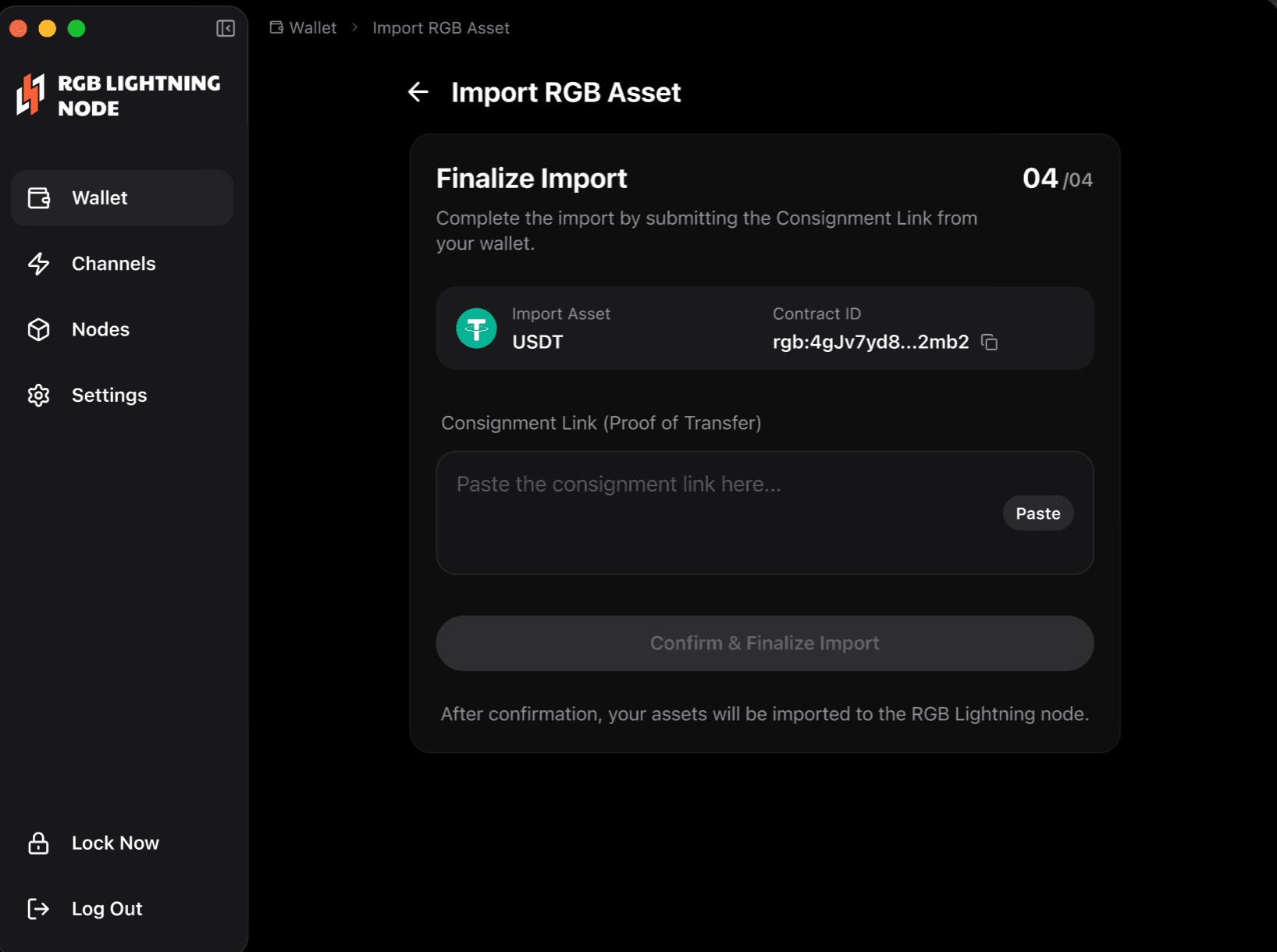
On the Finalize Import page, enter the
Consignment Link(Proof of Transfer) for verification. TheConsignment Linkcan be copied from the transaction details in the Bitlight Wallet extension and pasted here to complete the import.