6. Export RGB Assets
After an RGB asset transfer is complete, you can export the asset to another wallet. Currently, export is supported only to Bitlight Wallet.
-
On the home page, click
Morenext to Activities, then select Export. -
On the Enter Recipient Invoice page, paste the RGB invoice to be exported. The invoice must be generated in Bitlight Wallet from the corresponding RGB asset page.
-
Click
Confirm& Send to continue. -
Click
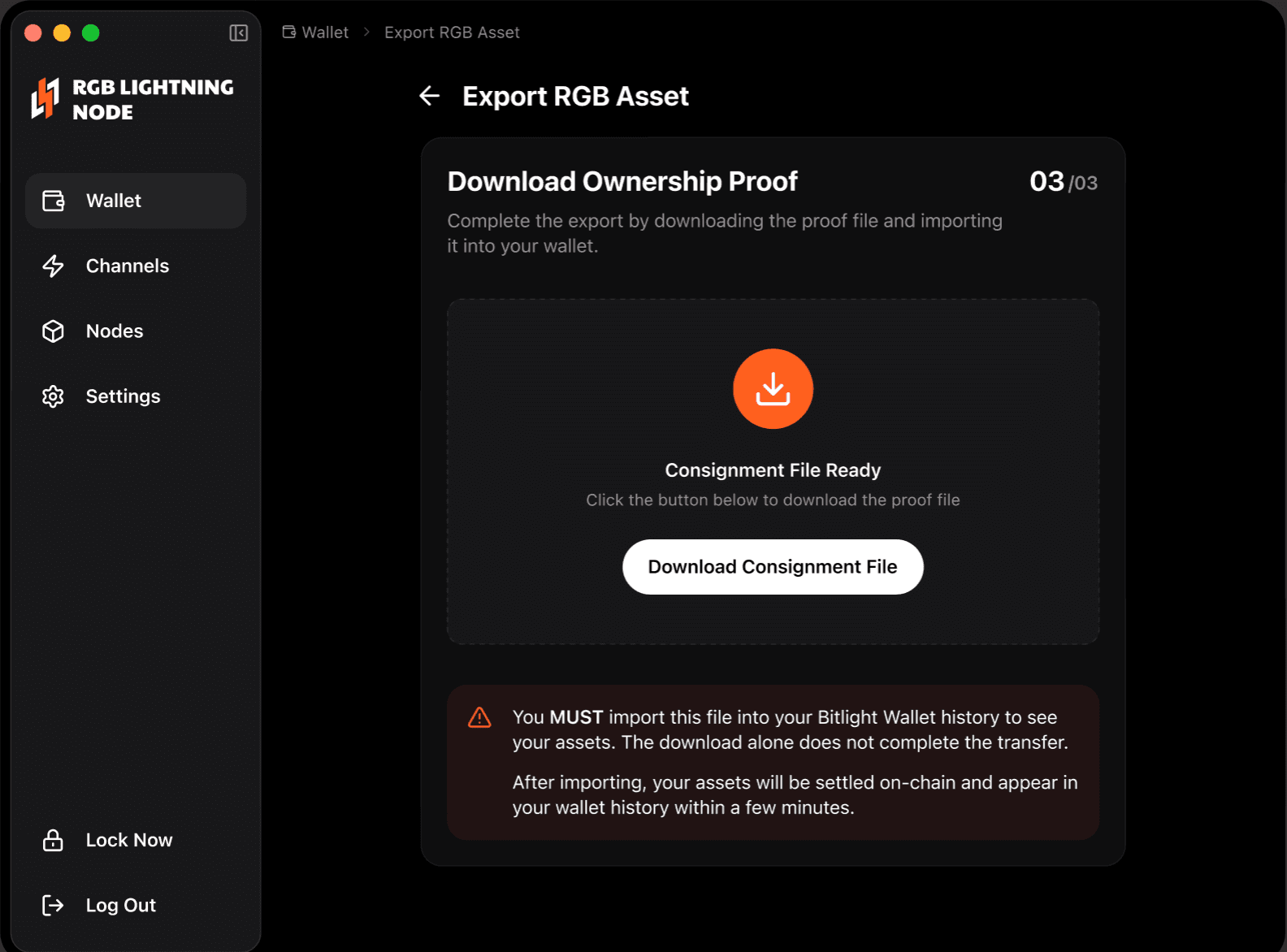
Download Consignment Fileto save the file locally. -
In Bitlight Wallet, open the corresponding RGB asset, find the option to verify Consignment, and import the file you downloaded to complete the export.